---
title: "How to override template file using helper function in Magento2"
url: "https://dolphinwebsolution.com/how-to-override-template-file-using-helper-function-in-magento2"
date: "2023-07-22T12:43:37+05:30"
modified: "2023-08-29T06:48:51+05:30"
author:
name: "Jigar Patel"
categories:
- "Magento"
- "Magento2"
word_count: 436
reading_time: "3 min read"
summary: "In Magento 2, you can override a template file using a helper function by dynamically specifying the custom template path in your custom helper class. This approach allows you to change the templat..."
description: "In Magento 2, you can override a template file using a helper function by dynamically specifying the custom template path in your custom helper class. This a..."
keywords: "template file,helper function,xsi:type=helper, Magento, Magento2"
language: "en"
schema_type: "Article"
related_posts:
- title: "How To Add Custom Button In System Configurations Magento 2"
url: "https://dolphinwebsolution.com/how-to-add-custom-button-in-system-configurations-magento-2"
- title: "Magento vs. Shopware vs. Shopify vs. WooCommerce: Core Differences"
url: "https://dolphinwebsolution.com/blog/magento-vs-shopware-vs-shopify-wocommerce/"
- title: "How To Add Custom Attribute Data To Recently Viewed Products Widget"
url: "https://dolphinwebsolution.com/how-to-add-custom-attribute-data-to-recently-viewed-products-widget"
---
# How to override template file using helper function in Magento2
_Published: July 22, 2023_
_Author: Jigar Patel_
In Magento 2, you can override a template file using a helper function by dynamically specifying the custom template path in your custom helper class. This approach allows you to change the template file for a specific block without modifying the core block class.
### Step 1: Create a layout xml file
Create **dolphin\_index\_blog.xml** in **app/code/Dolphin/Customize/view/frontend/layout** directory with the following code.
```
```
The *helper* can use only public methods. In this example the **`someMethod()`** method should be public. The argument with *helper* type can contain `param` items which can be passed as a helper method parameters.
we use the **``** node to call the **`setTemplate`** method of the block with the alias **“index.blog”** We pass the path to the custom template file obtained from the helper function as an argument using **`xsi:type="helper"`**. This tells Magento to dynamically fetch the template path using the specified helper method.
### Step 2: Create helper class
Create **Data.php** in **app/code/Dolphin/Customize/Helper** directory with the following code.
```
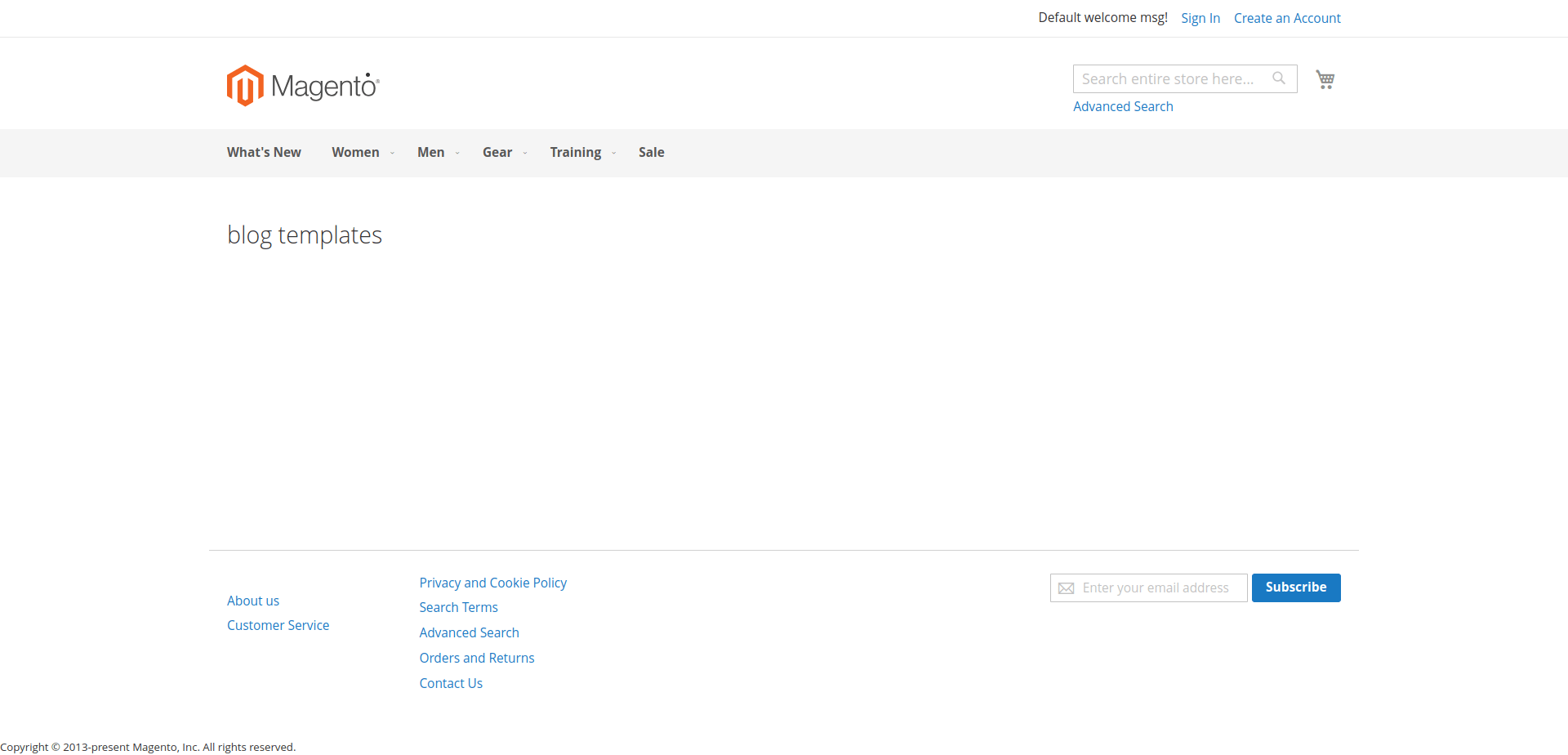
blog templates
```
Now execute the below command and go to the system configuration page:
**php bin/magento s:up**
**php bin/magento s:d:c**
**php bin/magento s:s:d -f**
**php bin/magento c:c**
#### Result:-
I Hope, This instruction will be helpful for you.
If you have any difficulties regarding this blog, do consider posting them in the Comments section below!
I’m here to help.
**Thank you!**
---
_View the original post at: [https://dolphinwebsolution.com/how-to-override-template-file-using-helper-function-in-magento2](https://dolphinwebsolution.com/how-to-override-template-file-using-helper-function-in-magento2)_
_Served as markdown by [Third Audience](https://github.com/third-audience) v3.5.3_
_Generated: 2026-08-26 06:14:15 UTC_