---
title: "How to create Modal Dialog in Hyva Theme Magento 2"
url: "https://dolphinwebsolution.com/how-to-create-modal-dialog-in-hyva-theme-magento-2"
date: "2023-03-09T06:04:43+05:30"
modified: "2023-08-28T07:06:59+05:30"
author:
name: "Aadil Popatiya"
url: "https://dolphinwebsolution.com/"
categories:
- "Hyva"
word_count: 1287
reading_time: "7 min read"
summary: "Hyva Theme is a Magento 2 framework that offers a powerful and flexible platform for eCommerce store development. In this article, we will learn about creating Modal Dialog in Hyva Theme Magento 2...."
description: "Hyva Theme is a Magento 2 framework that offers a powerful and flexible platform for eCommerce store development. In this article, we will learn about creati..."
keywords: "Hyva"
language: "en"
schema_type: "Article"
related_posts:
- title: "Reasons to Switch Hyvä Theme for Magento 2"
url: "https://dolphinwebsolution.com/blog/reasons-to-switch-hyva-theme-for-magento-2/"
- title: "Top 10 Hyvä Theme Development Companies"
url: "https://dolphinwebsolution.com/blog/top-hyva-theme-development-companies/"
- title: "Hyvä Magento Theme: Stay Ahead in the E-Commerce Race by Hiring Hyvä Theme Developer"
url: "https://dolphinwebsolution.com/blog/stay-ahead-in-the-e-commerce-race-by-hiring-hyva-theme-developer/"
---
# How to create Modal Dialog in Hyva Theme Magento 2
_Published: March 9, 2023_
_Author: Aadil Popatiya_

Hyva Theme is a Magento 2 framework that offers a powerful and flexible platform for eCommerce store development. In this article, we will learn about creating Modal Dialog in [Hyva Theme Magento 2](https://dolphinwebsolution.com/hyva-theme-development).
## Steps to Create a Popup Modal in Magento 2 Hyva Theme:
### Step 1: Setting up the Layout for Magento 2 Hyva Theme Popup Modal
To create a layout for Magento 2 popup modal in Hyva Theme, follow these steps:
Create a layout folder in the following location:
app/code/\[VendorName\]/\[ModuleName\]/view/frontend/layout/
Inside the layout folder, create a hyva\_default.xml file and add the following code:
```
```
In the code, we define a block within the main container that extends the **Magento\\Framework\\View\\Element\\Template** class. This is done to add our template file.
Finally, the **** tag is used to load the required JavaScript in the page. This ensures that the modal will work correctly on the page.
### Step 2: Creating the Template for Magento 2 Hyva Theme Popup Modal
To create a template for Magento 2 popup modal in Hyva Theme, follow these steps:
Create a template folder in the following location:
app/code/\[VendorName\]/\[ModuleName\]/view/frontend/templates/
Add a modal.phtml file to the templates folder and insert the following code:
#### Method 1:
```
require(\Hyva\Theme\ViewModel\Modal::class); ?>
createModal()->withContent('
Modal Header
The standard chunk of Lorem Ipsum used since the 1500s is reproduced below for those interested. Sections 1.10.32 and 1.10.33 from "de Finibus Bonorum et Malorum" by Cicero are also reproduced in their exact original form, accompanied by English versions from the 1914 translation by H. Rackham.
';
) ?>
```
In this code, we first import the required classes and assign them to variables for use later in the code. The **$escaper** variable is used to escape any HTML code in the popup modal. The **$viewModels** variable is used to access the Hyva Theme View Model registry, and the **$modalViewModel** variable is used to access the Hyva Theme View Model for the modal.
Next, we create a main div element with the **x-data** attribute, which is used to bind the modal to the page. Inside the div, we create a button that triggers the modal to show when clicked, and the **modalViewModel->createModal()->withContent()** function is used to create the modal and insert its content.
The **handleModal** function is defined in a script tag, which returns an object with a single property named iAccept, which triggers an alert when called, then hides the modal using the hide function.
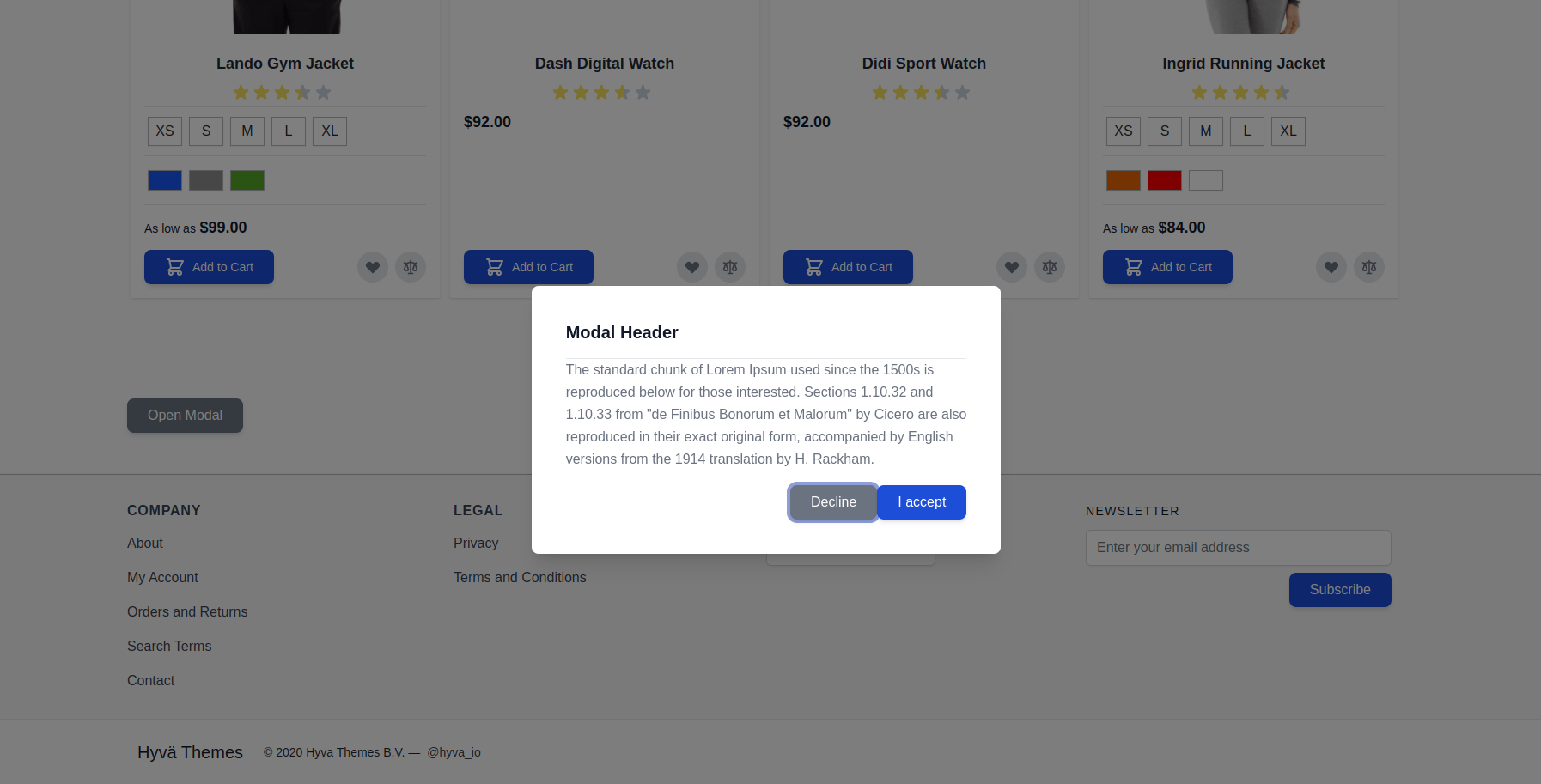
The generated modal is displayed when the “Open Modal” button is clicked.
If you have multiple modal dialogs in a single page, you can use **$modalViewModel->createModal()->withDialogRefName(‘my-dialog’)** to create a unique dialog reference name, and open the modal using **show(‘my-dialog’)**.
The object returned by hyva.modal() has four properties: show(), hide(), overlay(), and isDialogOpen. Be sure not to overwrite them with your custom code.
The isDialogOpen property stores if the modal is visible (true) or hidden (false). The property name might be different, depending on the dialog name, but it will always be called is + dialog name + Open.
#### Method 2: Using a global function
Sometimes you might want to open a dialog from anywhere on the page, from outside the Alpine dialog component.
It is also possible to declare a global function that can be called from anywhere.
To do this, the Alpine object scope needs to be captured in a global function, so the dialog reference is available.
First, declare the view model as usual:
```
require(\Hyva\Theme\ViewModel\Modal::class)
->createModal()
->withDialogRefName('my-dialog')
->withContent('
Modal Header
The standard chunk of Lorem Ipsum used since the 1500s is reproduced below for those interested. Sections 1.10.32 and 1.10.33 from "de Finibus Bonorum et Malorum" by Cicero are also reproduced in their exact original form, accompanied by English versions from the 1914 translation by H. Rackham.
'
);
?>
```
Second, when rendering the modal inside the Alpine.js component, add an **init()** function that captures the component scope in a global function.
```
```
Here the **init** function is declared directly inside the **x-data** attribute and merged onto the view model returned by **hyva.modal()** using object destructuring but it could be declared just as well in a view model function.
Then, the **init** function is called with **x-init=”init()”** (in Alpine v3 that is taken care of automatically).
Now, the dialog can be opened from anywhere on the page by calling **window.openMyDialog()**.
```
```
### Step 3: Run the Command
- In the last step, run the following commands:
- Clear the cache by the following command:
- php bin/magento c:f OR
- php bin/magento clear:cache
- That’s it! The final result window will look like this:
[](https://dolphinwebsolution.com/wp-content/uploads/2023/03/popup-modal.png)
Happy coding!!
---
_View the original post at: [https://dolphinwebsolution.com/how-to-create-modal-dialog-in-hyva-theme-magento-2](https://dolphinwebsolution.com/how-to-create-modal-dialog-in-hyva-theme-magento-2)_
_Served as markdown by [Third Audience](https://github.com/third-audience) v3.5.3_
_Generated: 2026-08-26 06:40:55 UTC_