---
title: "How to create custom page layout in Magento 2."
url: "https://dolphinwebsolution.com/how-to-create-custom-page-layout-in-magento"
date: "2022-05-19T13:44:21+05:30"
modified: "2023-08-25T08:48:44+05:30"
author:
name: "Jayesh Makwana"
categories:
- "Blog"
- "Magento"
word_count: 838
reading_time: "5 min read"
summary: "In this article. we will create a new page layout and update the layout for CMS Page in Magento.
When an existing page layout does not meet your requirements, we will deliver a solution on How t..."
description: "In this article. we will create a new page layout and update the layout for CMS Page in Magento. When an existing page layout does not meet your requirements..."
keywords: "custom page layout,layout update, Blog, Magento"
language: "en"
schema_type: "Article"
related_posts:
- title: "How to add dynamic rows in system configuration Magento 2"
url: "https://dolphinwebsolution.com/how-to-add-dynamic-rows-in-system-configuration-magento-2"
- title: "Top 10 Reasons to Why You Should Choose Magento for eCommerce"
url: "https://dolphinwebsolution.com/magento-for-ecommerce-top-10-reasons-as-to-why-you-should-choose-it"
- title: "How to Fix Content Security Policy (CSP) Magento 2"
url: "https://dolphinwebsolution.com/fix-content-security-policy-magento2-3-5"
---
# How to create custom page layout in Magento 2.
_Published: May 19, 2022_
_Author: Jayesh Makwana_

In this article. we will create a new page layout and update the layout for CMS Page in Magento.
When an existing page layout does not meet your requirements, we will deliver a solution on How to Change CMS Page Layout for Specific CMS pages Only in Magento 2.
Sometimes, You need to add a custom page design instead of using Magento default Page design for your custom requirement. For example, you wish you could change the page design to match your requirements and improve the page design on any specific CMS page.
Here, We have 2 different methods to achieve your goal.
1. Create a custom layout.2. Using Layout Updates.
#### Method 1: **Create a custom layout.**
First, we try to create a custom page layout, and in these two files needed to create a custom layout page.
**Step 1**: create a layouts.xml at
**app/design/frontend/Dolphin/custom\_theme/Magento\_Theme/**
this file registered a custom layout.
```
```
After creating the above file you can check your test layout in the admin panel.
**Step 2**: Create a layout file custom\_home.xml at
**app/design/frontend/Dolphin/custom\_theme/Magento\_Theme/page\_layout/**
this file to manage the design of your layout page.
```
```
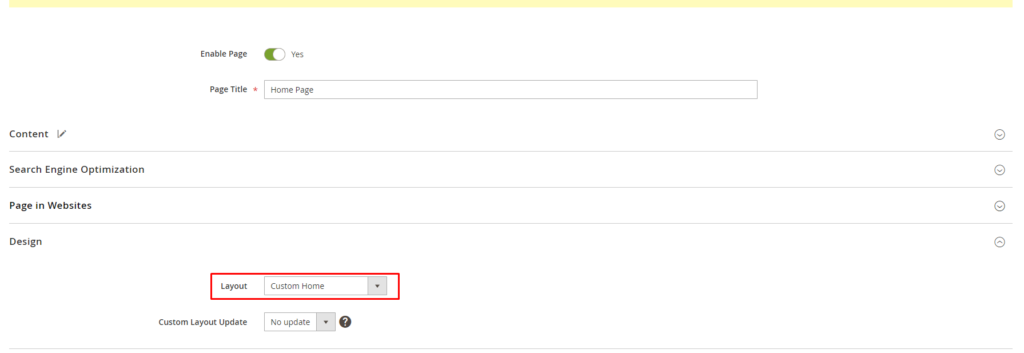
Now, this is complete to use as a custom layout. You can check this layout in the admin panel configuration setting.
****Step 3:** Reference the layout from the page**
1. On the Admin sidebar, go to Content > Elements > Pages.2. Find the page where you want to place the block and open it in edit mode.3. Scroll down and expand the Design section.4. Click the Layout arrow to display all available layout updates that are associated with the page.
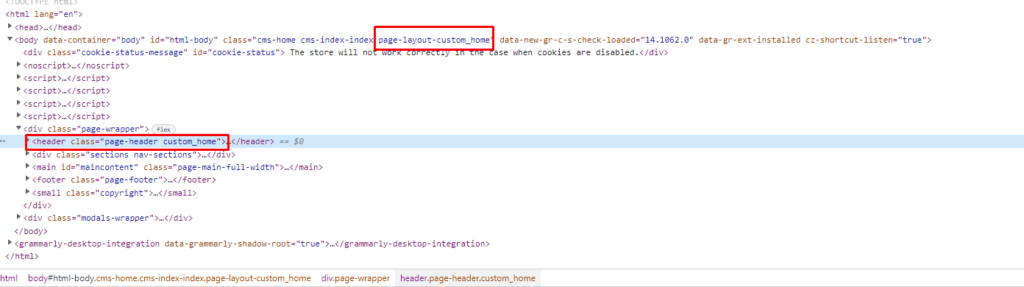
On the storefront, there is a new custom layout with your custom classes.
## 
#### Method 2: **Using layout Updates.**
Now, We try to update the existing layout update.
The layout handle is the filename that begins with cms\_page\_view\_selectable\_, followed by the URL key of the CMS page, the layout update option, and the XML file suffix. In the following example, about-us is the URL key of the page, and custom is the option that you select to apply the layout update to the page.
**Step 1**: Create a layout in your theme folder at
**app/design/frontend/Dolphin/custom\_theme/Magento\_Cms/layout/cms\_page\_view\_selectable\_\_.xml.**
Please check the below example for reference.
**app/design/frontend/Dolphin/custom\_theme/Magento\_Cms/layout/cms\_page\_view\_selectable\_about-us\_custom.xml**
Inside the file, we remove the page title custom code as shown below:
```
```
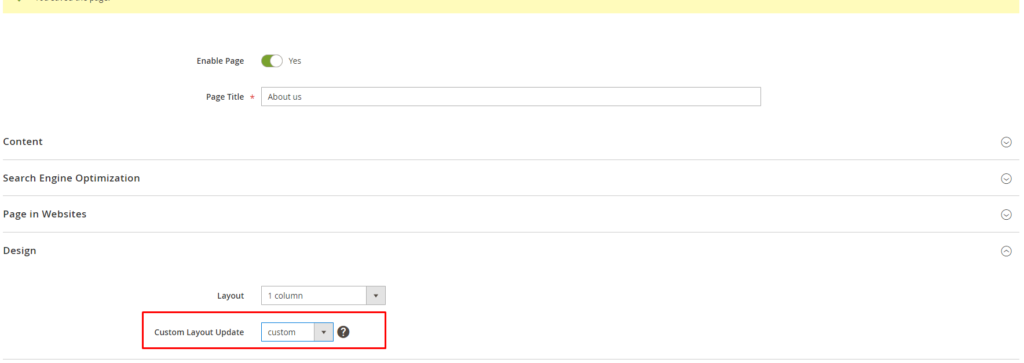
****Step 3:** Reference the layout from the page**
1. On the Admin sidebar, go to Content > Elements > Pages.2. Find the page where you want to place the block and open it in edit mode.3. Scroll down and expand the Design section.4. Click the Custom Layout Update arrow to display all available layout updates that are associated with the page.
#### Conclusion
As you can look from these simple examples, it’s easy to customize the page using a custom layout. Apply some CSS for styling and you’ll have your new page layout with new customized content a couple of times.
**You may also like to read**
1. [Create a Custom Theme](https://dolphinwebsolution.com/how-to-create-a-custom-theme-in-magento-2)
2. [Add Custom Tab on Product Page](https://dolphinwebsolution.com/how-to-add-custom-tab-in-product-page-magento-2)
**That’s it!**
I hope this technical blog will help you to find what you were looking for.
That’s all, If you have any further questions about Magento 2 theme development or if need any help from our [Magento 2 expert](https://dolphinwebsolution.com/hire-magento-developer/), contact us now for a free consultation.
**Bookmark** it for your future reference. Do comment below if you have any other questions.
**P.S.** Do share this note with your team.
---
_View the original post at: [https://dolphinwebsolution.com/how-to-create-custom-page-layout-in-magento](https://dolphinwebsolution.com/how-to-create-custom-page-layout-in-magento)_
_Served as markdown by [Third Audience](https://github.com/third-audience) v3.5.3_
_Generated: 2026-08-26 06:54:00 UTC_