---
title: "How to add additional text based on selected shipping methods in the checkout"
url: "https://dolphinwebsolution.com/how-to-add-additional-text-based-on-selected-shipping-methods-in-the-checkout"
date: "2023-01-02T16:29:42+05:30"
modified: "2023-08-24T09:51:04+05:30"
author:
name: "Jigar Patel"
categories:
- "Magento"
word_count: 960
reading_time: "5 min read"
summary: "Magento 2 shipping methods that you can choose for your eCommerce retail: Free Shipping, Flat Rate, and Table Rates. In order to display additional text based on selected shipping methods in the ch..."
description: "Magento 2 shipping methods that you can choose for your eCommerce retail: Free Shipping, Flat Rate, and Table Rates. In order to display additional text base..."
keywords: "additional text,selected shipping methods,checkout,Free Shipping, Magento"
language: "en"
schema_type: "Article"
related_posts:
- title: "Remove xml export in admin grid Magento 2"
url: "https://dolphinwebsolution.com/remove-xml-export-in-admin-grid-magento-2"
- title: "How to Create Module in Magento 2"
url: "https://dolphinwebsolution.com/how-to-create-module-in-magento-2"
- title: "How to add owl carousel slider in Magento 2"
url: "https://dolphinwebsolution.com/how-to-add-owl-carousel-slider-in-magento-2"
---
# How to add additional text based on selected shipping methods in the checkout
_Published: January 2, 2023_
_Author: Jigar Patel_

[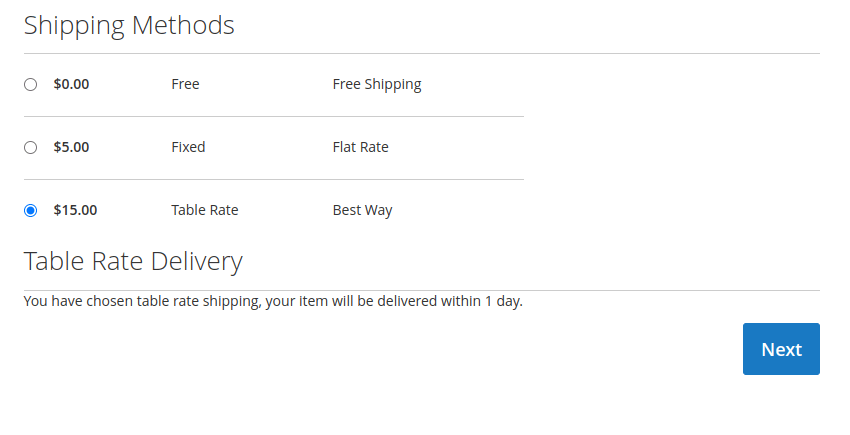](https://dolphinwebsolution.com/wp-content/uploads/2023/02/table-rate.png)[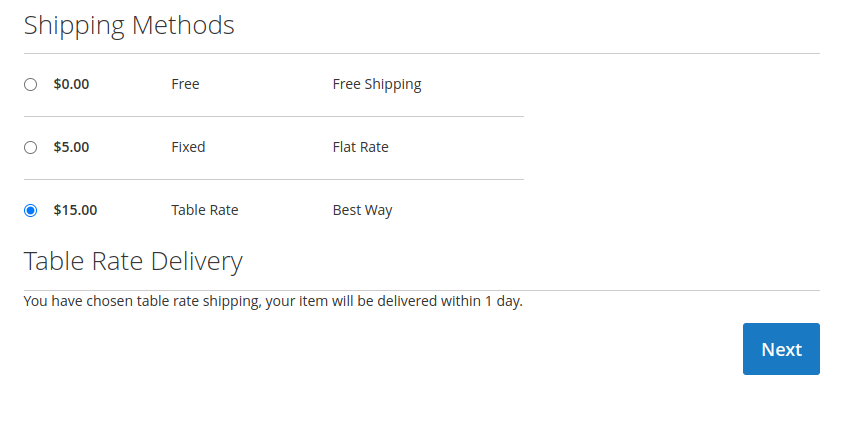](https://dolphinwebsolution.com/wp-content/uploads/2023/01/table-rate.png)Magento 2 shipping methods that you can choose for your eCommerce retail: **Free Shipping**, **Flat Rate**, and **Table Rates.** In order to **display additional text based on selected shipping methods** in the checkout in Magento 2. Magento shipping methods are the price and method of shipping products to customers in the order management process.
you need to configure the origin shipping method in Magento 2 to calculate the shipping costs for the shipments from your store and calculate the tax for your products.
Go to **Stores** > **Settings** > **Configuration** > **Sales** > **Delivery Methods** (formerly **Shipping Methods**)
we will create and add an additional Html template with our custom text into *shippingAdditional* area which is already defined by Magento below shipping methods. In order to do it we need to add additional code to the *checkout\_index\_index.xml* file. The last step will be to add a javascript file which will help us to decide what text we should display based on the selected shipping method. Let’s start then.
### Steps To Add additional text based on selected shipping methods in the checkout
We are already learned [how to create a basic module in Magento 2](https://dolphinwebsolution.com/how-to-create-basic-module-in-magento-2). We need to create **module.xml** and **registration.php** files. You can create **module.xml** and **registration.php** from this tutorial.
Here we are using **Dolphin** as the Vendor name and **Recently** as the name of the module. You can change this according to your Vendor and Module name.
#### Step 1: Create a Template file
Create template file **shipping-info.html** in **app/code/Dolphin/Recently/view/frontend/web/template** folder with the following code.
```
```
The important part is to add certain methods which we will use in javascript to show certain blocks. I have bolded these parts **showFreeShippingInfo()** and **showTableRateShippingInfo()**. We are also adding *style=”display: none;* since initially we don’t want to show these blocks. Feel free to change rest of the code.
#### Step 2: Create a Layout file
Create layout file **checkout\_index\_index.xml** in **app/code/Dolphin/Recently/view/frontend/layout** folder with the following code.
```
-
-
-
-
-
-
-
-
-
-
- uiComponent
- shippingAdditional
-
-
- Dolphin_Recently/js/view/shipping-info
- checkoutProvider
- 0
```
At this point we specify displayArea into *shippingAddtional* as mentioned before and specify path for js file which we will create below. Notice, we skip middle part *view/frontend/web/* since Magento automatically will recognise this part of the path. If you are using module, replace *Magento\_Checkout* with name of your module.
#### Step 3: Create a Javascript file
Create Javascript file **shipping-info.js** in **app/code/Dolphin/Recently/view/frontend/web/js/view** folder with the following code.
```
define([
'uiComponent',
'ko',
'Magento_Checkout/js/model/quote'
], function (Component, ko, quote) {
'use strict';
return Component.extend({
defaults: {
template: 'Dolphin_Recently/shipping-info'
},
initObservable: function () {
var self = this._super();
this.showFreeShippingInfo = ko.computed(function() {
var method = quote.shippingMethod();
if(method && method['carrier_code'] !== undefined) {
if(method['carrier_code'] === 'freeshipping') {
return true;
}
}
return false;
}, this);
this.showTableRateShippingInfo = ko.computed(function() {
var method = quote.shippingMethod();
if(method && method['carrier_code'] !== undefined) {
if(method['carrier_code'] === 'tablerate') {
return true;
}
}
return false;
}, this);
return this;
}
});
});
```
Now execute the below command and go to the system configuration page:
\[dt\_highlight color=”” text\_color=”” bg\_color=””\]php bin/magento setup:upgrade\[/dt\_highlight\]
\[dt\_highlight color=”” text\_color=”” bg\_color=””\]php bin/magento setup:static-content:deploy -f\[/dt\_highlight\]
\[dt\_highlight color=”” text\_color=”” bg\_color=””\]php bin/magento cache:flush\[/dt\_highlight\]
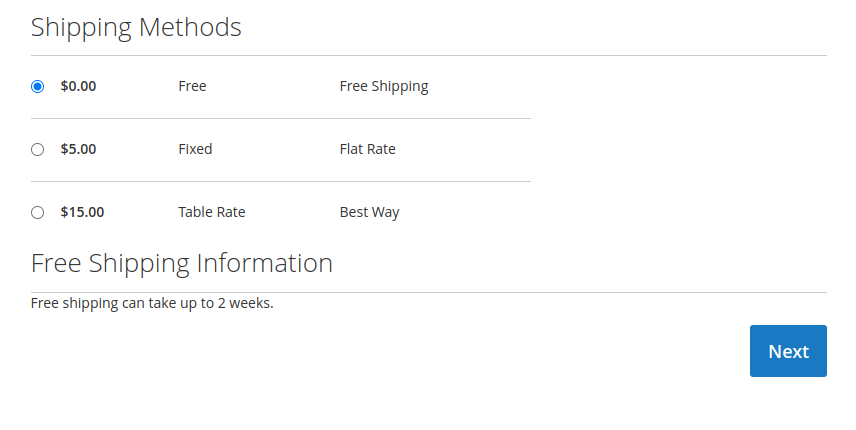
**Result:**
[](https://dolphinwebsolution.com/wp-content/uploads/2023/02/free.png)
I Hope, This instruction will be helpful for you.
**Happy Coding with magento2!! ?**
If you have any difficulties regarding this blog, do consider them posting in the Comments section below!
I’m here to help.
Thank you!
---
_View the original post at: [https://dolphinwebsolution.com/how-to-add-additional-text-based-on-selected-shipping-methods-in-the-checkout](https://dolphinwebsolution.com/how-to-add-additional-text-based-on-selected-shipping-methods-in-the-checkout)_
_Served as markdown by [Third Audience](https://github.com/third-audience) v3.5.3_
_Generated: 2026-08-26 06:14:32 UTC_