---
title: "How to Add Custom Block to Order View Information in Magento"
url: "https://dolphinwebsolution.com/add-custom-block-to-order-view-information-in-magento"
date: "2021-10-07T04:24:04+05:30"
modified: "2023-08-25T09:31:58+05:30"
author:
name: "Jigar Patel"
categories:
- "Magento"
word_count: 608
reading_time: "4 min read"
summary: "Magento 2, displays the customer info, address information, payment, and shipping information, etc. on the admin sales order view. Magento Backend is already packed with several options that allow ..."
description: "In this article, Today I will instruct on How to Add Custom block Information to Admin Sales Order View in Magento 2. Magento 2, displays the customer info, ..."
keywords: "Add custom block,Add custom block magento 2,Add custom block to order view,create custom block to order view, Magento"
language: "en"
schema_type: "Article"
related_posts:
- title: "Top 9 Reasons to Choose Magento as Your eCommerce Platform"
url: "https://dolphinwebsolution.com/blog/reasons-choose-magento-ecommerce-platform/"
- title: "Add Custom Select Options Attribute in Category Form Magento 2"
url: "https://dolphinwebsolution.com/add-custom-select-options-attribute-in-category-form-magento-2"
- title: "How To Setup Cron Time In Magento 2 System Configuration"
url: "https://dolphinwebsolution.com/how-to-setup-cron-time-in-magento-2-system-configuration"
---
# How to Add Custom Block to Order View Information in Magento
_Published: October 7, 2021_
_Author: Jigar Patel_

Magento 2, displays the customer info, address information, payment, and shipping information, etc. on the admin sales order view. Magento Backend is already packed with several options that allow you to manage store functionalities efficiently. Sometimes this information may not be enough based on the requirements.
Recently, one of our customers wants to do the same where he wants to add the custom section in the admin Sales Order view of Magento 2 and here is how we did it.
## How to Add Custom Block to Order View Information in Magento
We will introduce several ways to add a new custom block to order view, code snippets are under a module named **Dolphin\_OrderSection**.
### Step 1: Create Registration
Create **registration.php** file in the **app/code/Dolphin/OrderSection** folder with the following code.
```
```
Also Like to Read: [Magento PWA Headless Solution](https://dolphinwebsolution.com/shop/pwa-solution.html)
### Step:3 Create a Layout
Create a **sales\_order\_view.xml** file in the **app/code/Dolphin/OrderSection/view/adminhtml/layout** folder with the following code.
```
```
A **block** is a unit of page output that renders some distinctive content (anything visually tangible for the end-user), such as a piece of information or a user interface element.
- **class:** A fully-qualified class name, such as `Vendor\Module\Block\Class`. Defaults to `Magento\Framework\View\Element\Template`. ex: **“Dolphin\\OrderSection\\Block\\Adminhtml\\Order\\View\\View”**
- **name:** 0-9, A-Z, a-z, underscore (\_), period (.), dash (-). Should start with a letter. Case-sensitive. ex: **“sales\_custom\_view”**
- **template:**`Vendor_Module::path/to/template.phtml` (Scope is already in the `templates` directory of the module) ex: **“Dolphin\_OrderSection::order/view/view.phtml”**
### Step:4 Create a Block
Create a **View.php** file in the **app/code/Dolphin/OrderSection/Block/Adminhtml/Order/View** folder with the following code.
```
Custom Information Add custom block information ```
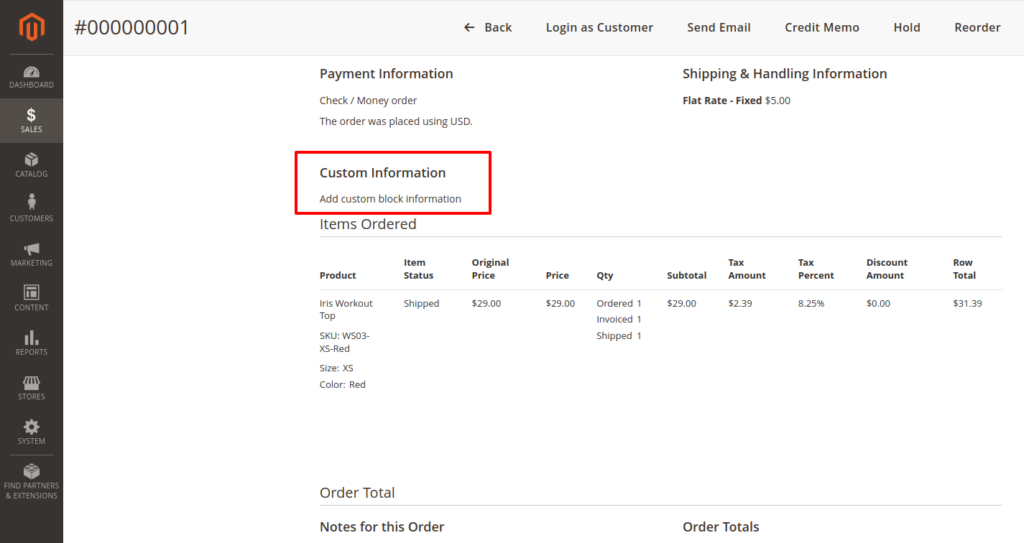
After that, clear the cache, go to sales order and click to view any order. you will see your custom information block.
**Result:**
I hope this instruction will be helpful for you.
If you have any difficulties regarding this blog, do consider them posting in the Comments section below!
I’m here to help.
**Thank you!**
---
_View the original post at: [https://dolphinwebsolution.com/add-custom-block-to-order-view-information-in-magento](https://dolphinwebsolution.com/add-custom-block-to-order-view-information-in-magento)_
_Served as markdown by [Third Audience](https://github.com/third-audience) v3.5.3_
_Generated: 2026-08-26 07:38:55 UTC_