---
title: "Add custom block in cart summary on checkout and cart page in Magento 2"
url: "https://dolphinwebsolution.com/add-custom-block-in-cart-summary-on-checkout-and-cart-page-in-magento-2"
date: "2023-07-22T03:21:25+05:30"
modified: "2023-08-29T06:36:06+05:30"
author:
name: "Jigar Patel"
categories:
- "Magento2"
word_count: 692
reading_time: "4 min read"
summary: "In Magento 2, the cart summary is a section of the website\'s shopping cart page and the checkout page that provides an overview of the items added to the cart. It displays essential information rel..."
description: "In Magento 2, the cart summary is a section of the website’s shopping cart page and the checkout page that provides an overview of the items added to t..."
keywords: "cart summary,checkout,shopping cart,custom block, Magento2"
language: "en"
schema_type: "Article"
related_posts:
- title: "Disable the PageBuilder module for a specific field in Magento 2"
url: "https://dolphinwebsolution.com/disable-the-pagebuilder-module-for-a-specific-field-in-magento-2"
- title: "How to generate CSS for Hyva theme in Magento 2"
url: "https://dolphinwebsolution.com/how-to-generate-css-for-hyva-theme-in-magento-2"
- title: "How to Programmatically Assign Attribute to All Attribute Sets in Magento 2"
url: "https://dolphinwebsolution.com/how-to-programmatically-assign-attribute-to-all-attribute-sets-in-magento-2"
---
# Add custom block in cart summary on checkout and cart page in Magento 2
_Published: July 22, 2023_
_Author: Jigar Patel_
In Magento 2, the cart summary is a section of the website’s shopping cart page and the checkout page that provides an overview of the items added to the cart. It displays essential information related to the products in the cart, such as product names, quantities, prices, subtotal, discounts, taxes, shipping costs, and the grand total.
The cart summary is crucial for customers to review their selected items before proceeding to checkout. It gives them a clear understanding of what they are about to purchase and allows them to make any necessary adjustments, like updating quantities, removing items, or applying discount codes.
Typically, the cart summary is displayed in a tabular format, showing each product in a row, with relevant details in columns. Some essential elements of the cart summary may include:
1. Product name and image: A clear identification of the product the customer is buying.
2. Quantity: The number of units of each product added to the cart.
3. Price: The individual price of each product.
4. Subtotal: The total cost of each product line item (quantity multiplied by price).
5. Grand Total: The total amount of the entire cart, including all items, taxes, shipping, and discounts.
6. Action buttons: Buttons to remove products from the cart or to update the cart after making changes.
In Magento 2, adding a custom block to the cart summary section on the checkout and cart pages can be accomplished by creating a simple module. This module will define a new block and display it in the desired location. Here’s a step-by-step guide to achieving this:
We are already learned [how to create a basic module in Magento 2](https://dolphinwebsolution.com/how-to-create-module-in-magento-2). We need to create **module.xml** and **registration.php** files. You can create **module.xml** and **registration.php** from this tutorial.
Here we are using **Dolphin** as Vendor name and **Customize** as the name of the module. You can change this according to your Vendor and Module name.
### Step 1: Create a layout xml file
Create **checkout\_cart\_index.xml** in **app/code/Dolphin/Customize/view/frontend/layout** directory with the following code.
```
```
**If you want to display the custom block before the cart totals section, then use *before=”checkout.cart.totals”* in place of *after=”checkout.cart.totals”*.**
```
```
### Step 2: Create a templates file
Create **customProduct.phtml** in **app/code/Dolphin/Customize/view/frontend/templates** directory with the following code.
```
Hot Sellers
Favorites from Luma shoppers
```
Now execute the below command and go to the system configuration page:
**php bin/magento s:up**
**php bin/magento s:d:c**
**php bin/magento s:s:d -f**
**php bin/magento c:c**
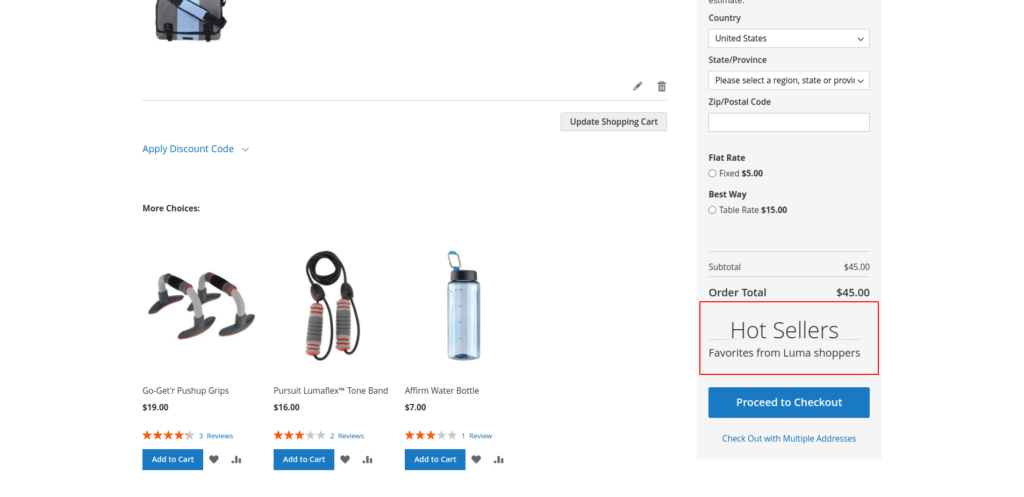
You should now have a custom block displayed in the cart summary on both the cart and checkout pages in Magento 2. Remember that you can customize the content and appearance of the custom block by modifying the **customProduct`.phtml`** template file and adding any necessary logic to the **block class**.
#### Result:-
I Hope, This instruction will be helpful for you.
If you have any difficulties regarding this blog, do consider posting them in the Comments section below!
I’m here to help.
**Thank you!**
---
_View the original post at: [https://dolphinwebsolution.com/add-custom-block-in-cart-summary-on-checkout-and-cart-page-in-magento-2](https://dolphinwebsolution.com/add-custom-block-in-cart-summary-on-checkout-and-cart-page-in-magento-2)_
_Served as markdown by [Third Audience](https://github.com/third-audience) v3.5.3_
_Generated: 2026-08-26 06:40:55 UTC_